Image SEO Best Practices: Google's Specs and a KB Budget
Image SEO from Google's own pages: each surface's spec, a kilobyte budget by format, free checks, and how Search Console now reports Lens traffic.
By Furkan AktaşPublished
On this page
Most Google image SEO advice breaks at a point that Google's own pages and field data settle. Google says it finds images in the src of an img element and does not index CSS images. It calls alt text the most important image attribute and the file name a very light clue.
It names no winning format, and in the 2024 Web Almanac crawl the median WebP was lighter than the median AVIF. Pixel size sets the byte cost before the format does.
This guide shows how to optimize images for SEO in the order a reader asks the questions: what each surface needs, whether the image can be found, what describes it, what pixel size to export, what byte budget to set, and how to see the result. It claims no fixed order of work, because no Google page gives one.
Image SEO: what each Google surface asks of an image
Image SEO is the work of making one image file qualify for each Google surface that shows it, and each surface asks for a different specification. The same photo can appear as the text result thumbnail, in the Google Images tab, in Discover and in an Article rich result, and the requirements differ at each stop.
Google's selection of the preview image is completely automated and draws on several sources on the page, so the practical job is to supply a good candidate and steer the choice.
Google names three ways to steer it: the primaryImageOfPage property, a schema.org image property on the page's main entity, or an og:image meta tag. It also says what to leave out of that markup: a site logo or other generic picture, or any graphic with text in it.
Download CSV (CC BY 4.0)
Sources: Google Search Central documentation on Google Images, Discover, Article structured data, and the large-images case study.
Google's own Discover example is a 1280 by 720 image, which holds 921,600 pixels against the 300,000 total pixels Discover asks for. That same file is far above the 50K-pixel minimum in the Article guidance. A single hero exported for Discover therefore covers two surfaces, and the only extra work is the 4x3 and 1x1 crops Article markup recommends.
Read the two publisher outcomes with their scope. The 79% and 332% figures belong to the publishers Google named: 79% is the click-through rate for Kirbie's Cravings, and 332% is the click growth for Istoé over six months, both in Discover after adding the large image preview setting. Google chose to publish them.
They are Discover outcomes, so they say nothing about Images tab rankings. Which product pages deserve this treatment first is a catalog decision, covered in our ecommerce seo guide.
Make images findable: what Google can and cannot index
Google finds pictures in the src attribute of img elements, including an img inside a picture element, and it does not index pictures set in CSS, so a file that exists only as a CSS background cannot reach Google Images. That one rule explains most "not indexed" cases, because themes and page builders often load hero art through a stylesheet.
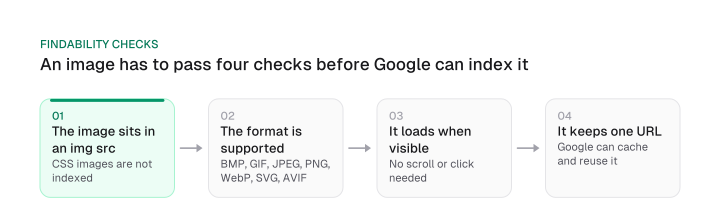
Five rules decide whether an image is findable, and each has a test you can run on your own page.
Download CSV (CC BY 4.0)
The supported-format list is worth reading for what it leaves out. HEIC, the default photo format on many phones, and JPEG XL are not on the list, so a file exported straight from a phone library may need converting before it can be indexed.
A single URL Inspection check covers the first four rules. Open the inspected page, choose View crawled page, then More info, and Google lists the resources and the page code it saw.
If the image URL appears in a src there, the page passes the first rule. If it appears only in a data-src attribute or inside a stylesheet, Google found nothing to index.
On a lazy-loading setup, an implementation that loads on visibility with no user action leaves the real src in the rendered code; one that waits for a scroll or a click does not, because Google does not interact with your page. The fifth rule you read off the same view, comparing the URL string from page to page.
The sitemap is a smaller lever than most plugins suggest. Google's documentation now lists two required tags, image:image and image:loc, and one url entry can hold up to 1,000 images. It removed four tags from the documentation (caption, geo_location, title and license, all in the same namespace), so a generator still emitting them is doing work Google dropped.
If your image sitemap lists files hosted on a CDN, Google encourages you to verify the CDN domain in Search Console so it can report crawl errors on them. Keep each file on the same URL.
Every image URL is a request Googlebot has to make, which is why a stable address per file and a sitemap that lists only files worth fetching tie into crawl budget.
Give each image context: alt text, file names and the page around it
Alt text is the most important attribute for describing an image to Google, while the file name gives Google only very light clues about the subject. Google's own image guidance says both in the same document, and the rest of this section follows from them.
The clearest image alt text examples come from Google's documentation, which walks one puppy photo from a missing attribute to the Dalmatian puppy version it prefers:
<!-- Missing -->
<img src="puppy.jpg">

<!-- Stuffed with keywords -->
<img src="puppy.jpg" alt="puppy dog baby dog pup pups puppies doggies pups litter puppies dog retriever labrador wolfhound setter pointer puppy jack russell terrier puppies dog food cheap dogfood puppy food">

<!-- Better -->
<img src="puppy.jpg" alt="puppy">

<!-- Best -->
<img src="puppy.jpg" alt="Dalmatian puppy playing fetch">
Google's writing rule is that alt text should be useful, information-rich content that uses keywords appropriately and is in context of the page. Its page names no character count, so treat any fixed limit as a habit, not a rule.
Two sources overstate the file name, and the correction matters because it drives wasted work. imageseo.io describes keyword-rich file names this way:
"a major factor for Google Images ranking"
Seobility says something similar:
"an important factor for the ranking of images in image search" (Seobility)
Google's sentence is quieter: the file name can give very light clues about the subject matter. The weight is Google's to set, and it set alt text far above the file name.
That matters commercially because imageseo.io sells one-click rewriting for 10,000 existing images. A bulk rename on a live site changes every one of those URLs, and Google asks you to reference an image with the same URL so it can cache and reuse the file without requesting it again. A new file name is a new URL.
The working rule for SEO friendly images: name files sensibly when you upload them, with plain descriptive words and hyphens, and do not run a bulk rename across live files for ranking. A new file costs nothing to name well. An old one that already has a URL, links and a place in the index loses more than it gains from a nicer name.
The page around the picture does more work than either attribute. Google extracts information about the subject from the content of the page, including captions and image titles, and recommends placing images near relevant text on pages relevant to that subject.
Descriptive captions and surrounding paragraphs are the cheapest context you can add, because they are part of the page's content. Our on-page SEO guide maps which page element does which job.
Google also says the content and metadata of the pages where an image is embedded can have a great influence on how and where the image appears.
Size each image for the screen it is shown on
An image's pixel width sets its byte cost before its format does, because bytes grow with pixel area: a 1920 by 1080 export holds 2,073,600 pixels and weighs about 544 KB at 2.1 bits per pixel, against 242 KB at 1280 by 720.
SEO image size is a byte question before it is a format question, so the format discussion comes next and starts from this pixel count.
The export rule is short. Take the largest displayed width of the image in CSS pixels, multiply by the device pixel ratio you serve, and export at that width, with smaller srcset candidates below it for smaller screens.
Download CSV (CC BY 4.0)
How we got these: width times height gives the pixels, and pixels times 2.1 bits per pixel divided by 8 gives bytes. The 2.1 is the median compression across web images in the Web Almanac's 2024 crawl. Doubling the width from 1280 to 2560 quadruples the pixels and so the bytes.
The field data shows why this matters on real phones. The Web Almanac's mobile crawler renders pages 360 CSS pixels wide at a device pixel ratio of 3x, so a full-width slot there needs 1,080 pixels across (360 times 3).
The median page's largest image holds 0.54 megapixels, and about half of pages send an even larger one. The Almanac says those pages are almost certainly sending the mobile crawler more pixels than it can display, waste that well-written responsive image markup could have prevented.
So the displayed width on the smallest screen you serve is the ceiling to check first, and a 2560 by 1440 export carries about four times the bytes of a 1280 by 720 file for pixels a 1,080-pixel slot cannot show.
Set the width and height attributes on every img element as well. The Almanac advises it so browsers can reserve layout space before the image loads, which prevents the layout shifts that core web vitals measure.
Set a byte budget by format, not by folklore
A 1280 by 720 image weighs about 230 KB at the 2024 field median for JPEG, 161 KB for AVIF and 150 KB for WebP, so the median WebP was lighter than the median AVIF. That sentence contradicts the common line that AVIF is the smallest format, and the contradiction comes from where the numbers were measured.
The lab numbers are real. Google's WebP study reports WebP files 25% to 34% smaller than JPEG at the same SSIM index. MDN says AVIF generally has better compression than WebP, with a median of 50% against 30% compression for the same JPG set.
The field numbers come from the HTTP Archive's Web Almanac crawls of real pages, in bits per pixel, and the byte figures below multiply them by the 921,600 pixels of a 1280 by 720 image.
Download CSV (CC BY 4.0)
Sources: HTTP Archive Web Almanac, Media chapters for 2022 and 2024, mobile crawler (the 2024 chapter says desktop and mobile numbers are similar). KB figures are our arithmetic: 921,600 pixels times the 2024 median bits per pixel divided by 8.
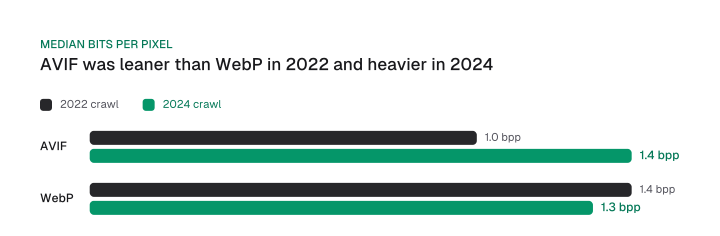
The AVIF median moved more than any other format. It read 1.5 bits per pixel in the 2021 crawl, fell to 1.0 in 2022 and rose to 1.4 in 2024. In 2022 the typical WebP was one-third lighter per pixel than the typical JPEG, and AVIF sat below both.
In 2024 the median WebP, at 1.3, was below the median AVIF at 1.4. The Almanac's explanation is that the current crop of AVIF encoders is likely making different quality and file size trade-offs, sacrificing less quality at default settings than the official libavif encoder did two years earlier.
The 1.4 sits 33% below the 2.1 all-format median (1 minus 1.4 divided by 2.1), and that all-format median is close to JPEG's 2.0, so read that gap against the JPEG row of the table instead of as a third off JPEG.
For image SEO optimization, the budget conclusion is mixed. Format savings are real in the lab and uneven in the field, so choose WebP as the safe default and treat AVIF's saving as an encoder settings decision you verify on your own files.
These are population medians over mixed images, photographs and graphics together, so they describe what the typical file of a format weighs per pixel and promise nothing for one file. The median real image is also far smaller than a 1280 by 720 hero. Export your own file in two formats and compare the bytes.
Bytes also interact with loading. The 2024 Web Almanac found that 9.5% of LCP-responsible img elements on mobile used native lazy-loading, nearly one in ten. Its 2025 performance chapter puts the share of mobile pages that lazy-load the LCP image at about 16% to 17% once custom methods count: 10.4% use native loading="lazy" and 5.9% hide the image behind a data-src attribute.
Google's lazy-loading guidance says not to add lazy loading to content likely to be immediately visible when a page opens, and the LCP image is exactly that content. Leave the hero eager, and let core web vitals take the thresholds and fixes from there.
How to optimize images for SEO and for the web: a checklist
To optimize images for SEO and the web, make each image findable, describe it in context, export it at its shown size and budget its bytes.
Here are the checks, each explained in the section above it:
- Make it findable. Put the image in an img src, in a format Google supports, never only in CSS.
- Describe it. Write useful, information-rich alt text in context, and place the image near relevant text.
- Name files at upload. Give new files plain descriptive names and leave live file names alone, because a new name is a new URL.
- Size it. Export at the largest displayed width times the pixel ratio you serve, with smaller srcset candidates and a src fallback.
- Pick the format by bytes. Default to WebP and test AVIF on your own files before you switch.
- Set width and height. Add both attributes so the browser reserves space, and keep the LCP image eager.
- Read the result. Open the Image filter in Search Console and group it by query.
Google gives no order of work for these checks, so start with whichever your URL Inspection check shows failing.
Measure image SEO in Search Console, and diagnose the stuck cases
Search Console reports Google Images traffic under the Image search type and Lens, Circle to Search, uploads and Chrome right-click searches under Web: multimodal, a filter Google announced on 24 September 2026. The two filters answer different questions, so read them separately.
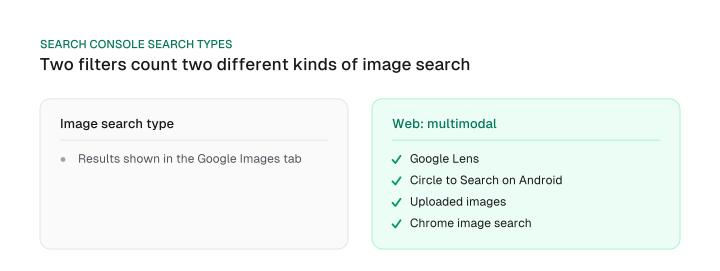
Google's help page defines the Image type as search traffic from results shown in the Google Images tab. It defines Web: multimodal as search traffic when users search using images, including searches that start in Google Lens, Circle to Search on Android, uploaded images and Chrome image search.
Our ai seo trends 2026 post reports the announcement itself. This section adds the contrast: one filter counts a results tab, the other counts a way of searching.
We read the multimodal count as a traffic readout rather than a score for image work. None of four Google pages (the Search Console help page, the 24 September announcement, the Google Images guide and the AI optimization guide) ties image metadata or format to that count. The announcement's only action line is that the data will help you "optimize your visual content".
Those four pages name no Google lever for Lens traffic, which makes Yoast's advice on Lens worth a second look:
"high-quality, unique, and properly described" (Yoast, on appearing in Google Lens)
Those are sensible habits for any image, and none of the four Google pages ties any of them to Lens results. Treat them as unproven for that purpose.
The harder question is the stuck case: alt text, WebP, a sitemap and Product schema are all in place, and the images still do not rank in Google Images. Practitioner threads show the question is common. Google's statements on page influence give a four-step diagnosis, and the steps run in this order for a reason: each one tells you whether the next is worth the time.
- Pull the queries behind the Image filter. In the Performance report, set the search type to Image and group by query. If the page earns impressions for no image queries, the problem is eligibility, so go back to the findability table. If it earns impressions on the wrong queries, the problem is subject matter.
- Look at what the results page shows for those queries. Search each query and see which kinds of images and pages fill the results. If they are all product photos on category pages and yours is an article, the format of the result is the gap.
- Check the image landing page. Google says the content and metadata of the page where an image is embedded can have a great influence on how and where the image appears. An image landing page that does not discuss the image's subject gives Google nothing to match.
- Check the preview image. Confirm the page offers a clean candidate through primaryImageOfPage, a schema.org image or og:image, and that it is not a logo or an image with text.
When all four pass and the basics are done, adding more attributes will not move the result. The next step is a better page for that query.
Free checks are enough for an image SEO checker: they cover the measurement side without installing anything. Search Console shows the traffic. URL Inspection shows what Google loaded and which code it saw. PageSpeed Insights is the tool Google's image guidance points to for image speed.
A browser extension or a WordPress SEO plugin can automate alt text prompts and compression, and that is useful at scale, though none of them changes the rules above. Fold these checks into a technical seo audit so the image findings sit beside crawl and indexing findings.
Google's pages settle most image SEO questions: what makes an image findable, why alt text outweighs the file name, why pixel size comes before format, and why the two Search Console filters are read apart.
Pick one template page that carries your most important images, run the URL Inspection check on it, and open the Image filter grouped by query to see which images earn impressions today.
Frequently asked questions
What is SEO for images?
Image SEO is the practice of making an image qualify for the Google surfaces that show it: the Images tab, the text result thumbnail, Discover and Article rich results. Each surface asks for a different specification, which the surface table at the top of this guide lays out.
How do you optimize images for SEO and for the web?
Make each image findable in an img src and a supported format, describe it with useful alt text and nearby text, and export it at the largest width it is displayed at times the pixel ratio. Default to WebP unless your own file tests say otherwise. The checklist above lists each step.
Which image formats does Google index?
Google Search supports BMP, GIF, JPEG, PNG, WebP, SVG and AVIF in the src attribute of img. HEIC and JPEG XL are not on the list. An image used only as a CSS background is not indexed, whatever its format.
Should I rename existing image files?
Not for ranking. Google calls the file name a source of very light clues, and a new file name is a new URL, while Google asks you to reference an image with the same URL so it can cache and reuse it. Name new files sensibly at upload and leave the live ones alone.
Do images need anything special for AI Overviews?
No. Google's AI optimization guide says that if you already follow its image SEO best practices, you are already optimizing for generative AI search. It adds that structured data is not required and that there is no special schema.org markup to add, and the AI features page lists no additional technical requirements.
For multimodal searches, Google's advice is to support your text with high-quality images and videos. That sets Google's wording against Yoast, which says structured data like ImageObject "gives AI systems additional context", and imageseo.io, which calls unoptimized images "invisible to both traditional search engines and the new wave of AI-powered discovery".
Images are one input among many when an AI answer picks its sources. Our ai overviews optimization guide covers the page-level signals, and the will ai replace seo discussion covers what changes for search work as a whole.
Do image rankings help the page rank?
Google reports the two in separate views, with the Image search type kept apart from the rest of web search in Search Console, and the relevance of the page itself decides where its images appear. No source we checked shows image rankings causing page rankings, so treat image work as its own result and measure it in its own filter.
Cite this page
Aktaş, F. (2026, October 12). Image SEO Best Practices: Google's Specs and a KB Budget. Mission Growth. https://missiongrowth.io/blog/image-seo
Figures we made for this post are free to reuse under CC BY 4.0 with credit to Mission Growth.
Get Mission Growth highlighted in your Google results.