
WordPress SEO: What Core Handles and What You Set Up
WordPress SEO guide: what core already outputs, which tags a theme or plugin writes twice, how to vet an SEO plugin, and a six-check audit to run.
By Furkan AktaşPublished

On this page
WordPress SEO is the work of making a WordPress site easy for search engines to crawl, index and rank, and on this platform most of that work is deciding who writes what. Core already writes a robots meta tag, a title tag, a canonical link, a sitemap index and a robots.txt. Your theme can write some of them again. So can the SEO plugin you are about to install.
A plugin-first WordPress SEO checklist starts with installing a plugin and then walks through its settings. That order hides two things. The real job is deciding which layer owns each output and checking that nothing is written twice. And the plugin you pick is one of the most privileged pieces of code on the site.
This WordPress SEO tutorial shows how to do SEO for WordPress by following the layers. It starts with an owner map, then covers the visibility setting, URLs, sitemaps, plugin choice, plugin safety, archives and builders. It ends with a six-check audit you can run in about fifteen minutes. It covers self-hosted installs and the hosted service, and says where the two differ.
How WordPress SEO works: what core, your theme and a plugin each own
WordPress SEO is the work of deciding which of three layers, core, your theme and one SEO plugin, writes each tag a crawler reads, and checking that no output is written twice. "SEO-friendly out of the box" is true only for a short list, and core's own functions document that list.
W3Techs reports that WordPress is used by 58.6% of all the websites whose content management system it knows, which is 40.1% of all websites (checked 2026-10-08). So you are working on the most common platform there is, and a platform-specific map pays off. Version 7 runs on 64.8% of WordPress sites; the FAQ answers "is WordPress outdated".
Here is the owner map. The five rows from robots meta to robots.txt are documented behaviour from WordPress developer reference pages. The last two rows say "check" because no core function we quoted writes them. This table is also your WordPress SEO without plugin baseline: it shows what core does when nothing else is installed, and which layer writes each tag once something is.
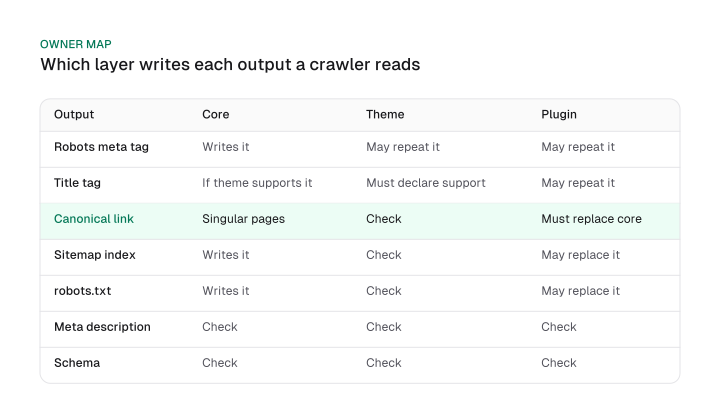
Two rows are where a plugin has to replace something. Core's title function prints a title only when the theme declares title-tag support, and core hooks its canonical function into wp_head, so a plugin that writes its own canonical must replace the core one.
If it does not, a post carries two. That is the first thing to rule out, and the canonical tag guide shows how to read the rendered source for it.
Meta description and schema are different. We did not find either documented as a core output, so the table tells you to look in the page head and does not assert behaviour. Structured data has its own decisions, covered in schema for ai search. The useful move is the owner map itself: for every output, name the layer that writes it, then confirm with a count.
Is your site visible? The Discourage setting and WordPress.com plans
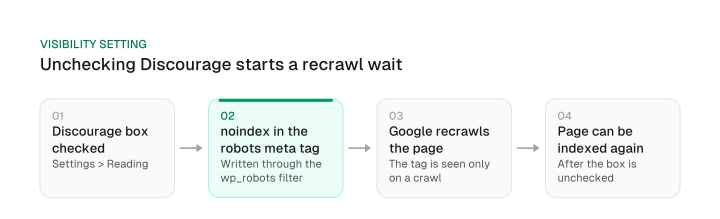
The Discourage search engines setting makes WordPress write a noindex robots meta tag, so unchecking it only helps after Google recrawls each page. If your site is missing from Google, this is the first thing to rule out, and it takes thirty seconds.
On self-hosted WordPress, the path is:
- Open Settings > Reading in the dashboard.
- Find "Search engine visibility".
- Make sure "Discourage search engines from indexing this site" is unchecked.
- Save, then open a post and read the head for a robots meta tag that no longer says noindex.
The mechanism explains the wait. Since WordPress 5.3, a discouraged site no longer gets a Disallow: / line in robots.txt. The developer reference says that output was removed in favour of the robots meta HTML tag, set through the wp_robots filter, whose callback adds noindex.
So the setting is a meta tag, and that has a consequence. Google says a page still appearing in results is probably one it has not crawled since the noindex rule was added. Google recrawls each page to see a changed tag, which means unchecking the box starts a wait.
There is one trap on the way. If robots.txt blocks a URL, Google cannot see the tag on it. So a site that is blocked in robots.txt and also noindexed can sit in limbo, and the fix is to check robots.txt and the page head together.
WordPress.com adds a second layer, so say which kind of WordPress you run before you follow any checklist. WordPress.com puts discovery of a new site at two to six weeks or more, even when the site is public.
A WordPress.com plan decides which tools you have. The additional SEO tools in WordPress.com's guide apply to Premium, Business and Commerce plans, while free sites and the Personal plan need an upgrade to use them. Installing plugins is available on all paid plans: Personal, Premium, Business and Commerce.
The staging domain is the other gate. A site with plugins enabled on the default wpcomstaging.com address is not indexed by default, WordPress.com states. Having an SEO plugin on that address does not change the default; WordPress.com recommends adding a custom domain. Self-hosted owners face neither gate, but they do face the same recrawl wait after any change to the setting.
Permalinks, HTTPS and www: set the URL once
WordPress permalinks under Settings > Permalinks should be Post name on a new site; on a live site core redirects host variants, ?p=ID URLs and renamed slugs, but a change between pretty structures needs a URL map and 301 redirects. The rule differs by site state, which is why a blanket "switch to Post name" is risky advice.
Core handles more than people expect. The redirect_canonical function sends one host variant, since search engines treat www and non-www as two different URLs, and it redirects ?page_id, ?p= and ?attachment_id= URLs to their pretty versions. Separately, wp_old_slug_redirect follows a post whose own slug changed.
None of the three function pages documents moving one pretty permalink structure to another, such as dates or categories to Post name. That is our reading of the developer reference. The "keep a structure that already reads cleanly" threshold in the table is our judgment.
For the case core does not cover, use Google's procedure: prepare a URL mapping from the current URLs to their corresponding new format, then redirect each old URL to its new one. After the switch, request three old URLs and confirm each answers with a 301 to the matching new URL. The site migration seo guide goes further on large moves.
HTTPS and www are the same kind of decision: pick one, and make the site prove it. Under Settings > General, the WordPress Address and Site Address fields must both use your preferred host, which means the same scheme and the same www choice.
Then test the variants. Request the http version and the other www variant; each should answer with one redirect hop to the preferred host, and the final address should load over HTTPS. Two hops, or a hop to the wrong variant, means a plugin, the host or a CDN rule is also redirecting. The audit below gives the exact commands.
Sitemaps and robots.txt: the files WordPress already writes
WordPress core has served an XML sitemap index at /wp-sitemap.xml since version 5.5, with at most 2,000 entries per sitemap, and a plugin sitemap can sit beside or replace it, so submit exactly one. The core sitemap index is the main XML file listing all the sitemap pages a WordPress site exposes.
WordPress does not need a plugin to have a sitemap.
The WordPress 5.5 release note for core shows a built-in sitemap with a defined path, cap and defaults, and Google says that if your pages are properly linked, it can usually discover most of your site. So the working question is which sitemap is live and whether it lists what you want indexed.
On any site running 5.5 or later, a plugin's job here is to replace the core sitemap with a better one or leave it alone.
The robots.txt WordPress answers with is a virtual robots.txt built by the do_robots function. Because core writes a sitemap reference into it, a plugin that swaps the sitemap should update that line too.
On a discouraged site there is no Disallow: / line anymore, as the visibility section explained. A Disallow: / line you do see came from somewhere else, so find out what is serving the file before you change a setting.
The check takes three requests. Open /wp-sitemap.xml and your plugin's sitemap URL, note which one answers, and submit that one in Google Search Console. If both answer, decide which one you maintain and switch the other off, so crawlers see one list.
Google does not require a sitemap on a well-linked site. If you keep one, make it list exactly what you want indexed.
Choosing one SEO plugin and what to give it to do
An SEO plugin on WordPress replaces tools core or the host would otherwise provide and adds page-level fields, so install exactly one SEO plugin, give it a written job list, and test it against four questions before you trust it.
The one-plugin rule comes from the platform's own documentation. WordPress.com says an SEO plugin replaces the built-in tools of your plan, and that installing more than one is not recommended because overlapping functions can produce conflicts or errors.
Decide the job list before you pick any SEO plugin for WordPress. Core keeps the robots meta basics, the title function, the canonical link, the sitemap index and robots.txt. The plugin takes over whichever of those you hand it. It also adds fields core lacks, such as the SEO title field and the description field on each post.
In that sense the plugin is a WordPress SEO tool that automates technical tasks like sitemaps and adds on-page editing fields. To change a post's SEO title, edit that field in the plugin's panel on the post screen; the plugin decides how it appears in the page head.
Writing the title and description well is a craft of its own, and the meta description guide covers it. For on-page fields beyond the title, on-page seo is the next read.
Most plugins open with a setup wizard that asks whether the site belongs to a person or an organization, plus a name and a default social share image. Treat the answers as inputs to verify.
After the wizard finishes, open a post, view the source and confirm the title, canonical and robots meta tag in the head, then open the sitemap the plugin says it serves. The wizard tells you what it intends to do. The page head shows what it did.
Many plugins also add a focus keyword and a content score. Use them as prompts rather than verdicts. Choosing the keyword is a separate skill, covered in how to choose seo keywords, and the writing that earns the score is covered in seo content writing.
If the site has several languages, a translation plugin adds its own tags, so read multilingual seo before you install one.
Here is the acceptance test, in the form of four questions that apply to any plugin without ranking products:
This rule answers the "which plugin" question without a ranking. The plugin that passes all four, fits your job list and has a maintained release history is the right one; a roundup of plugins is a different page type, and this guide does not rank Yoast, Rank Math, AIOSEO or SEOPress.
Is your SEO plugin safe? Access, vulnerabilities and consent
An SEO plugin is a privileged piece of code on your site, and in 2025 Patchstack counted 11,334 new WordPress vulnerabilities, 91% of them in plugins and 6 in core. Those numbers come from Patchstack's own count, dated 2026-02-25 on its report page, and they cover all plugins.
Read the counts as printed. Patchstack reported 11,334 new vulnerabilities in the WordPress ecosystem in 2025, a 42% increase on 2024. Of those, 91% were found in plugins and 9% in themes. Only 6 vulnerabilities were reported in WordPress core, and Patchstack describes them as low priority. And 46% of vulnerabilities did not receive a fix from the developer in time for public disclosure.
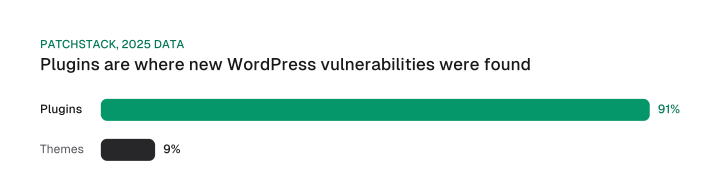
What do those numbers not say? They count reports across an ecosystem. They do not give a risk per installed plugin, and they do not tell you that adding one more plugin changes your risk by any amount. They tell you where vulnerability reports land: in the layer that site owners add themselves.
The useful question for a plugin is therefore what it may do on your site, which is questions two and three of the acceptance test.
A reported case from August 2026 shows what that question looks like in practice. The developer of The SEO Framework, a competing SEO plugin, said on social media that when a user opens the plugin's Help and Support section (Help & Support in Rank Math), Rank Math creates a WordPress Application Password tied to that user. Search Engine Journal reported it on 2026-08-30.
The report adds a condition: if the user in the admin area is an administrator, the Application Password inherits administrator-level permissions. Rank Math's reply, reported on 2026-08-31, was that its Support Agent was read-only and could not modify the site.
Rank Math then paused the Support Agent because it had not clearly communicated that the agent would generate credentials giving it access to the user's WordPress site.
This is an allegation from a competitor, answered by a vendor statement and a pause. The report describes a credential created when a user opens a support section, and its permission level follows that user.
Separately, the WordPress.org guideline says plugins may not contact external servers without explicit and authorized consent. The same questions apply to every plugin on your site.
So audit the list. WordPress lists them on the Edit User page, where you can view or revoke each one, so open each administrator's Edit User page and read the Application Passwords section; revoke any password you do not recognise and note what created it.
Do this after you finish a plugin's setup wizard and after you open its support screens. If a plugin creates credentials, you want to know that on the day it happens.
Archives, themes and page builders: where WordPress writes duplicates
WordPress creates archive pages for authors, dates, categories and tags automatically, and the core sitemap lists author archives by default, so an archive you set to noindex must also leave the sitemap. A sitemap that lists a URL tells crawlers the URL is a page you want indexed, and a noindex tag on the same URL says the opposite.
The rule has three steps. First, decide each archive type by site type. This is our judgment, not a sourced table: a single-author blog gains little from an author archive that repeats the blog index, a site that organises posts by category usually keeps the category archive, and date archives rarely earn their place on a small site.
Second, apply noindex archives through your plugin or theme to the types you drop. Third, open /wp-sitemap.xml and check whether author URLs are listed, matching your decision. On a single-author site set to noindex, the author archive has to leave the sitemap too, or you send two opposite signals about one URL. Markup that points a byline at that page is in connecting a byline to a profile page.
The index bloat guide explains why low-value archives dilute crawling on larger sites. How many internal links a post should carry is a separate topic, covered in internal linking strategy.
Themes and page builders are the second writer. A theme can print its own title, its own heading structure or its own tags, and a page builder can add a heading of its own to a page template.
W3Techs reports that 31.5% of WordPress sites use Elementor, so for a large share of readers the builder is part of the heading check. Treat the theme or builder as a second writer of headings and tags until the audit shows otherwise, and count H1s on the rendered page rather than trusting the editor view.
Speed is where layers add weight. On WordPress the weight comes from three places: the host, the theme or builder, and plugins. Which layer adds weight is a measurement question, so test with the plugin deactivated and again with it on.
Thresholds and fixes belong to core web vitals, and image handling to image seo; both have their own guides. The WordPress-specific point is to find the layer before you remove anything.
A six-check WordPress SEO audit
A six-check WordPress SEO audit takes about fifteen minutes with a browser and one command line, and each check has a healthy result and a likely cause when it fails. The checks assume a public site, and the healthy results come from the core behaviour described above; they are expectations for your own site.
Run checks 1 to 5 from a terminal. Replace example.com with your domain and the sample path with a real post:
URL="https://example.com/sample-post/"

# 1. Head tags: title, canonical and robots meta
curl -s "$URL" | sed '/<\/head>/q' | grep -oiE '<title[^>]*>|<link[^>]+rel=.canonical[^>]*>|<meta[^>]+name=.robots[^>]*>'

# 2. robots.txt
curl -s https://example.com/robots.txt

# 3. Core sitemap index
curl -sI https://example.com/wp-sitemap.xml | head -n 1

# 4. H1 count on the whole page
curl -s "$URL" | grep -oi '<h1' | wc -l

# 5. Host variants: one hop to the preferred host
curl -sI http://example.com/ | grep -iE '^(HTTP|location)'
curl -sI https://www.example.com/ | grep -iE '^(HTTP|location)'
Read the results against the table. In check 1, you want one title line, one canonical line and one robots line. Some plugins merge their values into the single core robots meta tag, so a plugin that adds directives and still leaves one tag is healthy. Two canonical lines, or two title lines, point to a theme and a plugin both writing.
If the HTML is minified onto one line, the sed command prints the whole page; the grep still isolates the three tags. Check 6 has no command: open each administrator's profile and read the Application Passwords section.
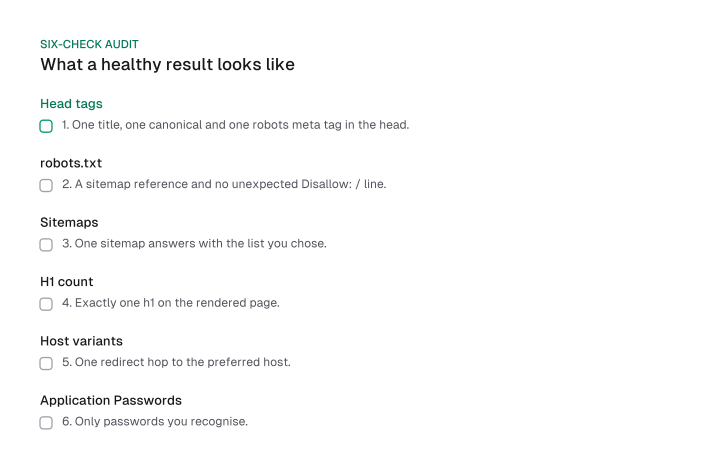
Once the head checks pass, use URL Inspection in Search Console on one important post, and ask whether Google has indexed that page. The header rule in the header tags seo guide explains why exactly one H1 is the safe default for the count in check 4. Treat any failed check as the fix to make before you touch a plugin setting.
WordPress SEO starts before the plugin. Core already writes the robots meta tag, title, canonical, sitemap index and robots.txt, so the job is to give each output one owner and confirm it with a count.
Run the six checks today on your newest post, fix whichever shows a second writer, and then choose a plugin with its access rights in mind.
Frequently asked questions
Is an SEO plugin a security risk?
The risk lies in the number and the permissions of the plugins you run, not in SEO plugins as a class. Patchstack's 2025 counts, 11,334 new vulnerabilities with 91% in plugins, describe the whole plugin ecosystem. Judge each plugin by what it may do: what it replaces, whom it contacts and which credentials it creates.
Why is my WordPress.com site not showing up in Google?
Check three things in order: the plan, the address and the public setting. WordPress.com says discovery of a new site can take two to six weeks or more. A site with plugins on the default wpcomstaging.com address is not indexed by default, and the Discourage setting writes noindex. Fix the address and the setting first, then wait for a recrawl.
Is WordPress outdated in 2026?
No. W3Techs shows WordPress on 40.1% of all websites and 58.6% of sites with a known CMS, and version 7 runs on 64.8% of WordPress sites. Those readings are dated 2026-10-08. Whether a site performs in search depends on its set-up and content, and the owner map above is the set-up part.
Do I need an SEO plugin at all?
Not for the five outputs core writes, but a plugin adds page-level fields, and many sites want them. Core handles the robots meta tag, title (with theme support), canonical link, sitemap index and robots.txt. A plugin adds fields such as the SEO title, and you should run only one, because WordPress.com says more than one is not recommended.
Is Yoast SEO ready for AI search?
Yoast SEO's plugin page lists llms.txt management among its AI-search features, with manual control over which pages are included. Whether AI search systems read that file is a separate question, so the plugin setting alone does not make a site ready for AI search. missiongrowth.io publishes its own llms.txt and llms-full.txt, and our llms.txt checker tests a file; the llms.txt guide covers what the file can and cannot do.
How long until WordPress SEO works, and is SEO still worth it?
Results take months, not days, and the answer depends on competition and content; how long does seo take gives the ranges, and will ai replace seo answers the worth-it question. If you are new to SEO itself, start with our guide on how to learn seo before you tune WordPress settings.
Cite this page
Aktaş, F. (2026, October 12). WordPress SEO: What Core Handles and What You Set Up. Mission Growth. https://missiongrowth.io/blog/wordpress-seo
Figures we made for this post are free to reuse under CC BY 4.0 with credit to Mission Growth.
Get Mission Growth highlighted in your Google results.