Shopify SEO Guide: Defaults, Titles and a 5-Check Audit
Shopify SEO guide: what Shopify handles by default, the title and URL traps your theme and apps create, and a five-check audit to run before you optimize.
By Furkan AktaşPublished Updated
On this page
Shopify SEO is the work of making a Shopify store findable in Google and in AI answers, and you can do most of it yourself because Shopify generates the technical basics. SEO stands for search engine optimization.
The catch sits between the platform and your content. Your theme and your apps can change what Shopify generates, and nothing warns you when they do. Shopify's own help centre says that if a page is missing its title tag, "it's likely the result of custom code or an app."
So the order matters: confirm the defaults first, then write. This guide reflects Shopify and Google documentation as of October 2026.
In this guide:
- Which tasks belong to Shopify, to your theme and apps, and to you
- The gates that keep a store out of Google before any optimizing starts
- A working title character budget, with the arithmetic
- The duplicate URL, canonical and robots.txt traps that are specific to Shopify
- A five-check audit with the healthy result for each check
- Whether Yoast SEO for Shopify or any other app is worth paying for
How Shopify SEO works: what the platform handles and what it does not
What Shopify handles is the technical basics of SEO. Your theme and apps can change them, and you write everything that needs a human: titles, descriptions, alt text and content.
Can you do SEO yourself on Shopify? Yes: Shopify generates the technical basics, so you can do SEO yourself with its admin fields, Search Console and the five-check audit below, and only theme code usually needs a developer.
What does SEO stand for? SEO stands for search engine optimization: the work of earning visibility in search results, which on Shopify means your titles, URLs, content, links and technical setup.
You will see "Shopify takes care of around 80% of technical SEO" repeated in guides. Shopify's own blog says it, but no source stands behind the number, and Shopify's help centre lists items instead of a share. The list is real. The percentage hides the step that matters, which is checking that the items survived your theme and your apps.
Here is the split we use through the rest of this guide:
Shopify optimization at this level is mostly a matter of knowing which layer a problem lives in.
Only the title tag and H1 have a documented failure cause. Shopify's FAQ says that Online Store 2.0 themes built by Shopify ship a valid title tag by default, so a page without one points to custom code or an app. For canonical tags, the sitemap and schema, the audit later in this guide asks you to confirm the output. It does not claim they break.
That is why the theme and app layer gets its own row. If you only read guides that say "Shopify handles it", you will blame the platform for a fault your own theme edit created, or the reverse. For the wider, platform-neutral picture of store SEO, our ecommerce SEO guide goes through category and product page strategy.
Make the store indexable before you optimize anything
A Shopify store needs private mode off, a paid plan you can rely on, Search Console verification and a submitted sitemap before Google can list it, and Shopify's own pages disagree on whether trial stores are indexed.
That disagreement is worth a minute. Shopify's help centre FAQ says search engines don't index trial stores. Shopify's SEO checklist says trial stores do get crawled and indexed, and then deindexed if you never move to a paid plan.
Don't rely on either statement. If you are on a trial, run a site: query for your domain and inspect a URL in Search Console, then treat any ranking as temporary.
Here is the setup order for any SEO for Shopify store project:
- Use your own domain. A custom domain ties the brand you build to an address you control.
- Deactivate private mode. Search Console domain verification needs it off, and Google's Merchant Center onboarding asks you to remove password protection too.
- Verify the store in Google Search Console. It reports indexing errors and gives you URL Inspection, which you will use to check rendered titles and H1 tags.
- Install Google Analytics 4. It tracks visitor behavior, so you can see what organic traffic does once it arrives.
- Submit the sitemap index. Shopify generates sitemap.xml automatically, and that file links to separate sitemaps for products, collections, blogs and webpages. Submit the index alone, since it already points to every child file.
- Connect the Google & YouTube app. For eligible stores, products synced to Google Merchant Center through that channel can display on Google surfaces for free.
The sitemap helps in one more way. Google treats sitemap inclusion as a weak signal that the listed URLs should become canonical, which is why a clean sitemap supports the canonical choices covered later in this guide.
When something is missing from Google, find the gate before you touch content:
In short: "my store isn't showing up" is a setup state first and an SEO problem second. Clear the four gates, wait for Google to recrawl, and only then judge your content.
Shopify title tags and meta descriptions: a working character budget
A Shopify title tag works to a smaller typed budget than the 60 characters Shopify advises, because a theme that follows Dawn's pattern appends the store name and takes nine more characters on page 2.
Dawn is Shopify's reference theme. In its theme.liquid file, the theme builds the title from the page title, then a tag suffix, then a Page N suffix when you are not on page 1, then the store name. The store name is added unless the page title already contains it. Other themes can differ, so view the source of one of your own pages before you trust this.
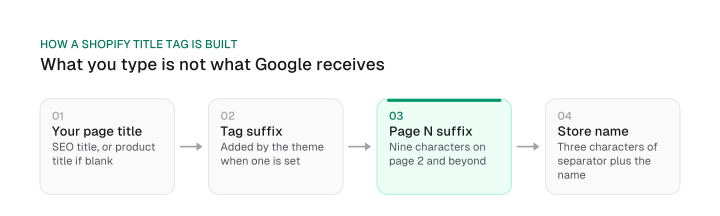
Two details turn that flow into a title budget. The separator before the name costs 3 characters, and the " – Page 2" suffix costs 9.
One shortcut follows from the "unless" rule: if your own page title already contains the store name, the theme skips it, which frees characters for the keyword.
The budget is simple arithmetic: Shopify advises keeping the title to 60 characters or fewer, so the characters left for what you type are 60 minus 3 minus your store name length. The store name lengths below are examples, not real stores:
Download CSV (CC BY 4.0)
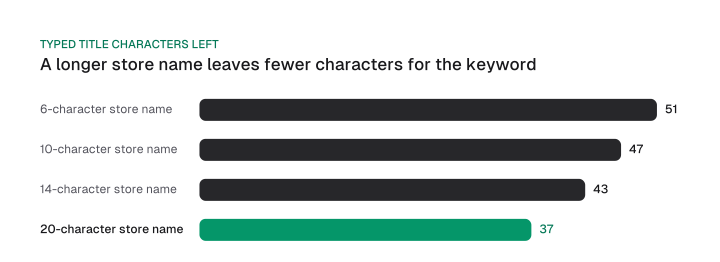
Read the table as a working target and not a limit. A 6-character store name leaves 51 characters, a 20-character name leaves 37, and on page 2 a 10-character name leaves 38 instead of 47. Write your product and collection titles to the number for your own store name.
Why use a budget instead of Shopify's 60? Because Shopify publishes three different title limits and three different meta limits, and Google states no limit on either.
For titles, Shopify's admin accepts up to 70 characters, its help centre advises 60 or fewer, and its blog says fewer than 55. For descriptions, the blog says under 150, the help centre recommends 160, and the product CSV accepts 320 in the SEO description column.
Download CSV (CC BY 4.0)
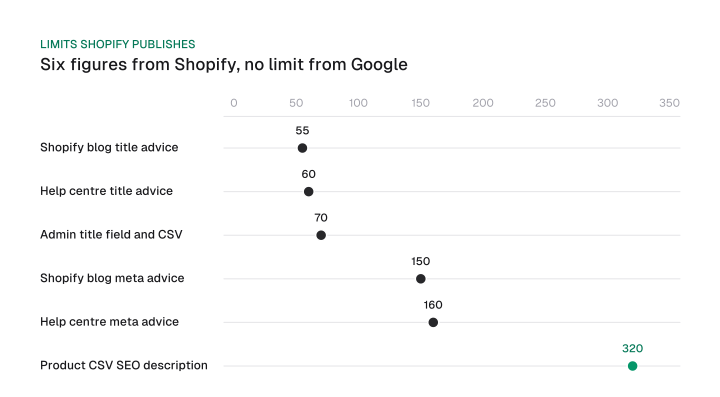
Google's side is short. Its documentation says there is no limit on how long a title element or meta description can be, and that the result is truncated as needed, typically to fit the device width. Which means all six Shopify figures are proxies for that truncation, and the field maximums (70 and 320) only tell you what the admin will accept.
Our rule: write to the working target from the table, put the keyword early, and ignore the rest. If you want more on writing the text itself, see how to write title tags. One caution from Shopify's own help: Google can choose to rewrite titles and descriptions based on page content, so check the page source before you decide an edit failed.
Collection URLs, canonicals and robots.txt: what to leave alone
Shopify's within filter creates a second, collection-path URL for the same product, so link to the plain product URL and confirm in view-source which URL each form declares as canonical.
The within filter is a Liquid filter themes use to output a product URL inside a collection, such as /collections/sale-potions/products/draught-of-immortality. Shopify's developer documentation warns about it directly: a standard product page and a product page in a collection context carry the same content on separate URLs, so consider the SEO implications.
Here is what that means in practice:
Google's canonicalization documentation ranks the canonical signals. A rel="canonical" annotation is a strong signal that the specified URL should become canonical, and sitemap inclusion is a weak one. The methods stack, so they work better when they agree. Your job is to make them agree: link to the URL you want indexed, keep it in the sitemap, and confirm the canonical on the other forms names the same one.
Shopify does not tell you which URL it declares on a collection-path page, so the audit below makes you look. For the underlying concept, our canonical tag guide covers when Google follows the annotation and when it doesn't.
Internal links follow the same logic. Shopify's help centre says pages shouldn't be more than 3 clicks away from the home page wherever possible, so build menus that put collections one click out and products two.
A theme that links collection-path URLs from product cards undermines this, because your internal links then point at the secondary form. Our internal linking strategy guide covers the wider pattern.
If you remove a product or change a handle, add a 301 redirect from the old URL so visitors and Google reach the new one.
Now robots.txt. Shopify generates a default robots.txt file that works for most stores. Adding a robots.txt.liquid template replaces Shopify's generated output, so a template you add becomes yours to maintain. If you do need a rule, Shopify recommends editing through the Liquid objects, because that preserves its ability to keep the file updated automatically.
A related message surprises owners: Search Console may report "Indexed, though blocked by robots.txt" for some URLs. Shopify calls this normal behavior and usually not a cause for concern.
Leave the generated canonical, sitemap and robots.txt output alone unless you can state what you are changing and how you will check it. If you sell through several domains in Shopify Markets, Shopify's documentation shows how to add host-specific rules to robots.txt.liquid, which belongs to a separate topic: multilingual SEO.
Product and collection pages: fields, images and schema
Each Shopify product field maps to one HTML element: the product title becomes the H1 and, unless the SEO title is filled, the title tag.
That mapping is worth memorizing, because it explains why two titles can differ without any code. Shopify uses the title you enter to generate the H1 on product pages, collection pages, webpages and blog posts. The SEO title field changes only the title tag. A worked example with one invented product, a "Trail Running Vest 12L":
Two of those fallbacks come from Shopify's product CSV documentation. The SEO title column takes up to 70 characters and the SEO description column up to 320, and a blank description cell falls back to the product description.
Fill the SEO title and description for the pages that earn clicks, and let the fallbacks cover the long tail. That is the core of Shopify store SEO at product level.
It also fits the structure in our header tags SEO guide: one H1 from the product title, then H2s and H3s in the description.
Images and alt text. Shopify's blog puts the file size saving of WebP at more than 30% against JPEG and PNG, and Shopify serves WebP for you. Your effort goes into descriptive file names before upload and alt text that says what the image shows. The alt text field lives on the image in the admin.
Speed. The Core Web Vitals thresholds sit in the next section, next to the app-audit rule.
Schema. Themes add Product structured data, and Shopify provides a structured_data filter that converts an object, such as a product, into schema.org structured data. If your theme calls it, you get JSON-LD for price, availability and reviews without any extra work.
The failure here is duplication. An app that adds its own Product markup can leave two blocks on the page. Count the JSON-LD blocks on one product page (the audit shows how) and decide which source you keep. Yoast, covered below, is one example of an app that adds structured data on its own.
Theme edits, apps and speed: where the defaults break
When a Shopify page loses its title tag or H1, Shopify's help centre points to custom theme code or an app, because Shopify's own themes ship both.
That sentence is the whole fault tree, and it is worth turning into a table. Match the symptom to the most likely cause, then confirm with URL Inspection, which Shopify calls the most reliable method for understanding which elements are present on your pages because it shows how search engines render them.
Only the first two rows have a documented cause from Shopify (custom code or an app). The causes in the first row are what a missing title usually comes down to in practice. The last two rows are checks to run, and Shopify doesn't say they fail.
So treat every theme edit and app install as a change to SEO output. After each one, re-check one product page, one collection page and one blog URL. That takes minutes and catches the silent failures.
Speed is the other thing an app install can change. Google defines good Core Web Vitals at the 75th percentile of page loads, segmented across mobile and desktop:
- LCP: the largest element appears within 2.5 seconds of the page starting to load.
- INP: the page responds to interactions in 200 milliseconds or less.
- CLS: layout shift stays at 0.1 or less.
Here is the app-audit rule that follows: before adding an app that injects code into your theme, ask what it changes on the page (titles, markup, scripts), and remove apps you no longer use. You can read the thresholds against your own store in Search Console's Core Web Vitals report.
A five-check Shopify SEO audit
A five-check audit confirms robots.txt, the canonical on a collection-path product URL, the JSON-LD block count, the rendered title and H1 per page type, and the sitemap index.
Run it after every theme or app change and before any content work. Each check lists where to look, the healthy result and the usual cause when it fails.
A healthy result is what you should see and confirm, which differs from a guarantee that Shopify delivers it. It is the quickest start to any Shopify SEO optimization, because it tells you whether the defaults still hold. For the broader version of an audit, see our SEO audit steps.
Check 1: robots.txt
Add /robots.txt to your store's address in a browser. The healthy result is a file that loads and contains the rules you expect, with no rule blocking your product or collection paths.
If you added a robots.txt.liquid template, it now replaces Shopify's generated output. The usual cause of trouble is an old edit nobody remembers.
Check 2: the canonical on a collection-path product URL
Open a product from a collection page, so the address contains /collections/.../products/, then view source and search for rel="canonical". The healthy result is a canonical that names the URL you want indexed, normally the plain /products/ form. The usual cause of a mismatch is a theme that links with the within filter, or an edit to the canonical tag in the theme.
Check 3: the JSON-LD block count
View source on a product page and search for application/ld+json. The healthy result is one Product block that you recognize, with price and availability that match the page. Two Product blocks usually mean the theme's structured_data output and an app are both writing markup.
Check 4: rendered title and H1 per page type
Pick one product, one collection, one blog post and the home page. Run URL Inspection in Search Console, then look at the rendered HTML. The healthy result is a title tag and a single H1 on each. A missing one is the first fault to chase.
Check 5: the sitemap index
Add /sitemap.xml to your store's address. The healthy result is an index that links to separate sitemaps for products, collections, blogs and webpages, and the same index submitted in Search Console. If the submitted sitemap shows an error, verify the domain first, because verification needs private mode off.
After the fifth check, write down what you saw. Next time a traffic dip shows up, you can tell whether a default changed or your content did. Re-run the audit after any change to the theme or apps, and once before you start a new round of content.
Do you need an SEO app? Yoast for Shopify versus native tools
Yoast SEO for Shopify is a paid app at $19 a month, while Shopify's native fields and product CSV already cover titles, descriptions and alt text for free, and Smart SEO and SearchPie list free plans.
Is there a free SEO plugin for Shopify? Two apps list free plans on their own App Store pages. Smart SEO lists a free plan with meta tag, alt tag and sitemap tools plus an automatic audit of 20 pages. SearchPie lists a free Starter plan with bulk meta tags, alt text templates and llms.txt generation.
Yoast's own listing shows two paid plans. Yoast SEO Premium costs $19 a month or $190 a year, and Yoast SEO AI+ costs $45 a month or $450 a year. Annual billing saves $38 on Premium and $90 on AI+ compared with paying monthly for twelve months.
Yoast says its app adds JSON-LD schema automatically and handles technical SEO and llms.txt generation without code.
Here is how to decide whether a Yoast SEO Shopify install, or any other app, earns its fee:
The rule: do bulk metadata edits through the product CSV, and buy an app only for structured data or llms.txt generation you cannot get from your theme. If you do install one, run checks 3 and 4 of the audit immediately, because an app that adds markup or titles is exactly the change that can duplicate your theme's output.
Keywords, content and links: what to do first
Work in this task order: indexability gates, title and URL defaults, theme and app faults, one query for each of your money pages, then blog posts and links.
Money pages are the collection and product pages where a purchase happens. Fix indexability first, because a store behind a gate can't be crawled. Then fix titles, then theme faults, then content. Content written on top of a broken default wastes the work.
How do you start SEO on a Shopify store? Start with the gates in the indexable section, then run the five-check audit, then write the SEO title and description for your best-selling collection and product pages.
Which SEO tasks should be prioritized first? Rank them by what blocks everything else:
- A store Google can't index (private mode, trial, password, sitemap)
- A title or H1 your theme or an app broke
- Duplicate product and collection URLs
- New content and links on your money pages
Keyword research. Google Keyword Planner and Search Console are enough, and they are the two free tools Shopify points to: Keyword Planner for suggestions, Search Console for the queries you already show up for. Start with the terms that show purchase intent, and pick one per page. Our guide on how to choose SEO keywords walks through the choice.
Blog and topic clusters. A blog helps once the money pages are right. Build a topic cluster around each collection: one pillar post, a few supporting blog posts that answer buyer questions, and links from each to the collection. Ecommerce SEO strategy covers how those posts and category pages fit together.
Backlinks. Earn backlinks once the on-site work is finished. The usual tactics:
- Guest posts on sites your buyers read
- Digital PR, meaning a story or dataset journalists can use
- Unlinked mentions, where a site names your brand without linking, and you ask for the link
- Skyscraper outreach, improving an existing resource and pitching it to sites that link to the old one
- Social profiles that link back to the store
Reviews. Treat product reviews as content on the money pages.
None of this replaces the earlier steps. For deciding between SEO and paid ads, SEO vs PPC is a separate decision with its own guide.
Shopify SEO for AI search
Shopify's free Knowledge Base app lets you view and edit the FAQs that AI shopping agents use to answer questions about your store.
The app is a first-party app available with all Shopify plans. Check what your store's FAQs say, because AI shopping agents read them when answering questions about you, and a wrong or missing answer is yours to fix.
Shopify's guidance for product pages adds one more action. If you want to add detailed content for an AI system to crawl that isn't applicable to your customers, add it lower on the product detail page. That keeps the top of the page written for buyers.
For the ChatGPT side, our guide on how to optimize for ChatGPT shopping covers Shopify Catalog and product feeds.
Shopify generates the title tag, H1, canonical tag, sitemap and Product markup itself, and its help centre says a missing title or H1 usually traces to custom code or an app. So confirm those defaults in view-source and Search Console before you write anything new. Your next step: block thirty minutes, run the five checks on one product, one collection and one blog URL, and write down what you find.
Frequently asked questions
Can you do SEO on Shopify?
Yes, and most of it is the fields in your admin. Shopify generates canonical tags, a sitemap and title tags with your store name, and you write the SEO titles, descriptions, alt text and content. The part to watch is your theme and apps, which can change what Shopify generates.
Can I do SEO myself on Shopify?
Yes, you can do SEO yourself for the five audit checks and the admin fields. You can verify the store, submit the sitemap, write titles and descriptions and fix alt text without code. Hire help for theme code, because that is where a missing title tag usually starts.
Why is my edited title not showing in Google?
View the page source first. If the title tag shows your edit, Google can choose to rewrite page titles and meta descriptions based on page content, and a recrawl can take several days to a few weeks. If the source is wrong, check the theme's suffix logic and your apps.
Is "indexed, though blocked by robots.txt" an error?
No. Shopify calls this normal behavior and usually not a cause for concern. Check your robots.txt only if you added a robots.txt.liquid template, since that replaces Shopify's generated file, and make sure it doesn't block pages you want indexed.
Is SEO still worth it in 2026 for a store?
Yes, if your store depends on buyers finding it through search. Whether to do SEO or pay for ads is a separate decision, covered in our guide to SEO vs PPC. For how AI answers change the picture, see will AI replace SEO.
How long until changes show?
Shopify says it can take several days to a few weeks for Google to recrawl and update your listing in search results. Rankings take longer than that. Our guide on how long SEO takes covers what to expect.
Cite this page
Aktaş, F. (2026, October 9). Shopify SEO Guide: Defaults, Titles and a 5-Check Audit. Mission Growth. https://missiongrowth.io/blog/shopify-seo
Download the data: 2 tables as CSV (CC BY 4.0)
Figures we made for this post are free to reuse under CC BY 4.0 with credit to Mission Growth.
Get Mission Growth highlighted in your Google results.