
Webflow SEO: Settings, Traps and a Seven-Check Audit
Webflow SEO guide: the settings that matter, which ones need a paid plan, the indexing and redirect traps in Webflow's own docs, and a seven-check audit.
By Furkan AktaşPublished Updated

On this page
Webflow SEO comes down to native settings, and several do something different from what their label suggests. The Sitemap indexing toggle is the real noindex switch. A robots.txt disallow leaves the page in your sitemap. A CSV redirect import deletes the redirects already on the site. Compressing the share image breaks the social preview.
The guide is organised by where each setting lives: site settings, page settings, CMS templates and publishing options. Each section gives the value that works and the failure that shows when it is wrong.
It also marks which settings sit behind a paid plan, because Webflow's help articles print the plan requirement feature by feature. Read it as a checklist with the reasons attached: SEO for Webflow owners who need to know what each setting really does.
It is written for a founder, marketer or freelance designer running a Webflow site on a paid Site plan with no in-house technical SEO. The last section is a seven-check audit that proves the settings published. If you are building a site for a registered adviser, read SEO for financial advisors first.
Is Webflow good for SEO? What it handles and which settings need a paid plan
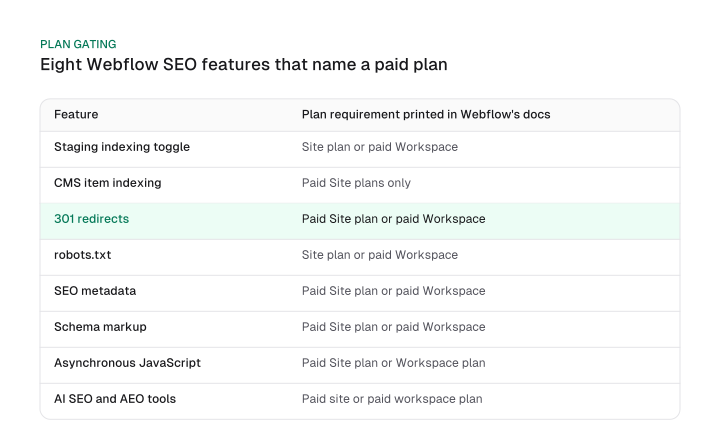
Webflow is good for SEO when the site is on a paid Site plan, because the sitemap, canonical, redirects, schema and indexing controls are native settings, and eight features of those name a paid plan in their own help articles.
So is Webflow good for SEO? The verdict is by situation. A team that will set the fields and check them gets everything it needs without code. A team that expects the platform to work unattended still fills in SEO metadata page by page, since Webflow's help centre says it cannot be set site-wide.
The plan gate starts at the bottom tier. Webflow's own update page says to purchase a paid Site plan to publish, host and get additional features. The free Starter plan therefore cannot go live, and none of the settings below can be tested on it. The table lists the features as the help articles describe them, as read on 8 October 2026.
Download CSV (CC BY 4.0)
The count is a map of where Webflow prints a plan sentence. Once the Starter plan is ruled out, it is not eight extra hurdles on a paid site.
The one tier above a paid Site plan that changes what you can do is Enterprise, which Webflow AEO requires. The sitemap, canonical and Search Console steps in the next section sit outside the count because those articles print no plan sentence.
Site settings to configure once: canonical, staging indexing, sitemap and Search Console
The global canonical tag needs the https protocol, the www prefix when the default domain has one and no trailing slash, or every subpage canonical gets double slashes or points to a duplicate. Webflow's help article says a protocol is required because search engines may read variations as duplicate content, and that a trailing slash makes the canonical URLs of all subpages include double slashes.
These Webflow SEO settings are the ones to set once, in this order:
- Global canonical. Enter the full address with the protocol, with www if your default domain uses it, and with no slash at the end. A page-level Page canonical URL field overrides the global value for that page only, so use it for the exceptions.
- Staging indexing. Turn off indexing of the webflow.io subdomain. The toggle needs a Site plan or paid Workspace.
- Sitemap and Search Console. Let the auto-generated sitemap update on each publish, verify a URL prefix property with the HTML tag, then submit the sitemap address inside Search Console.
A few details decide whether that works. A changed lastmod timestamp only appears after you republish the site, and Webflow adds the sitemap address to robots.txt automatically. Publish the site before you click Verify, since the HTML tag is not on the live page until you do. Webflow notes that verifying ownership and submitting a sitemap can typically speed up indexing.
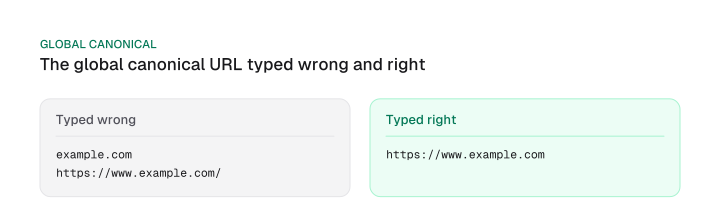
The three ways to type it fail differently. https://www.example.com/ produces double slashes on subpages. example.com has no protocol, which Webflow says can be read as a duplicate variant. https://www.example.com is correct when www is the default domain.
There is one more trap. If you inject the canonical through Google Tag Manager, leave the global canonical empty, because both together create multiple canonical tags that search engines may ignore entirely. The wider concept, including when a canonical is the wrong tool, sits in our guide to the canonical tag.
The staging toggle deserves a correction. Webflow's essential SEO guide says a duplicate staging copy draws a ranking penalty, and its canonical article says duplicate content can cause SEO penalties.
Google's Search Central blog said in 2008 that there is no such thing as a duplicate content penalty, at least not in the way most people mean it, and that the penalties it did describe target scraping and republishing content without adding value.
For ordinary duplicate pages on your own site, that means no duplicate content penalty to avoid. Keep the toggle anyway, because it stops a second competing URL for your content from existing in search results.
The sitemap has one more fact for multilingual sites: with Localize on, Webflow adds hreflang tags to the auto-generated sitemap for static and dynamic pages.
Title tag, meta description and Open Graph: Webflow's budgets against Google's no-limit rule
Webflow's blog budgets 55 characters for the title before the site title is added, its help centre and checklist say under 60 in total, and the three pages give 155, no limit and 160 for descriptions, while Google documents no limit for either, so front-load the title and stay near 60.
The two title budgets are different scopes and do not contradict each other. The description figures do disagree.
Download CSV (CC BY 4.0)
For Webflow SEO optimization of titles, treat 60 as an editing target and not as a rule, because the only source in the table that speaks for Google says there is no limit. A title longer than the display width is cut in results, so put the words that earn the click first.
For the writing side, including how Google rewrites titles, see the guide to title tag length. The keyword step that comes before any of this has its own page: how to choose SEO keywords.
Where the fields live matters as much as how long they are:
- SEO title and meta description are set in page settings, one page at a time. Webflow's help centre says you cannot set them globally, and editing them needs a paid Site plan or paid Workspace.
- Open Graph title and description sit in the same settings. Each field has a checkbox that pulls the value from your SEO title and meta description, which saves duplicate work when the two should match.
- Collection pages take a pattern instead of a typed value, covered in the next section.
Webflow also tells you to resist stuffing these fields with keywords to rig results, and Google may show body text from the page instead of your description when that text better matches the query. Both facts argue for a description written as a plain answer to the searcher's question.
CMS templates: dynamic titles, descriptions and alt text for every collection item
Webflow lets a Collection page take its SEO title and description from a pattern built with Add field, so the title budget must cover the item name plus the fixed suffix on every item. Webflow's help centre describes this as defining a pattern that all pages in a Collection use automatically. That is the same idea that makes template-driven sites scale, which programmatic SEO covers beyond Webflow.
The arithmetic is the part people skip. Suppose the pattern is the item name followed by the suffix " - Acme Studio", an invented brand. The suffix is 14 characters: three for the space, hyphen and space, plus eleven for "Acme Studio".
With a 60-character target, 46 characters remain for the item name. Any item name longer than that overflows the budget, and you only see it by checking the longest names in the Collection.
Alt text follows the same logic. An image element inside a Collection list or on a Collection template page can take dynamic alt text bound to a field, so each item gets its own description. Webflow's checklist suggests aiming for 125 characters or less. Images that carry no information can be set to the Decorative option in the alt text dropdown, which keeps filler out of the page.
Three gaps are worth checking by hand:
- Schema field types. Reference, Multi-reference and Multi-image Collection fields are not supported in schema markup, so plan plain text, option and image fields if the schema is meant to bind.
- CMS-bound image alt text. The Audit panel does not check it, so the check falls to you or to a dynamic alt text field.
- Pattern length. The pattern is one string for the whole Collection. The longest item decides whether the rule holds.
Indexing control: the Sitemap indexing toggle, robots.txt and noindex are different switches
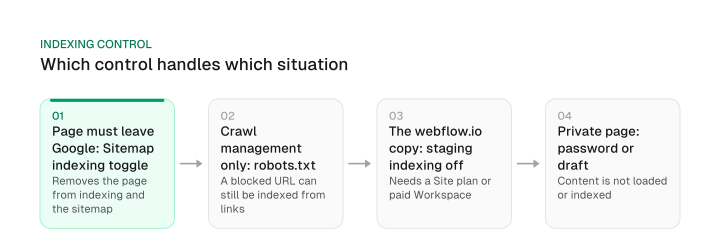
The Sitemap indexing toggle is Webflow's noindex switch and also removes the page from the sitemap, while a robots.txt disallow only stops crawling, leaves the page in the sitemap and cannot remove a page Google has already indexed. Webflow's help centre states the toggle's effect directly: the page is no longer indexed and no longer included in the sitemap.
The two older routes behave differently. If you disable indexing through a robots.txt disallow, the page is still included in the auto-generated sitemap. A custom-code noindex has the same effect: the page stays in the sitemap until you switch the toggle off. So a page can be marked noindex and still be advertised to Google in the sitemap, which is a mixed signal you created yourself.
Google's documentation adds the part Webflow's article leaves out. Google says it may still index a disallowed URL if it is linked from other places on the web, and that a robots.txt block can hide a noindex tag from Googlebot, so the tag is never seen.
For a previously indexed page, Webflow's instruction is to use the Sitemap indexing toggle and not robots.txt. Not every bot obeys robots.txt either, especially malicious or poorly configured ones.
This also corrects an older claim. Guides that say noindex and page canonicals need custom code in Webflow are out of date: the Sitemap indexing toggle and the Page canonical URL field are native page settings today. The advice to use robots.txt to remove pages conflicts with Webflow's current help centre.
Download CSV (CC BY 4.0)
Use the toggle to take a page out of Google, robots.txt only to manage crawling, and a password or draft for anything private. Remember that once a robots.txt exists in Webflow it cannot be completely removed, only edited, so write rules you can live with.
301 redirects and URL changes: order, limits and the CSV import trap
Webflow runs 301 redirects oldest first, so a broad wildcard created before a specific rule catches the URL first, and a CSV import replaces every redirect already on the site. Both failures are silent: the page does not error, it just goes to the wrong place or the old rules vanish.
Redirects need a paid Site plan or a paid Workspace. Webflow recommends 1,000 as a maximum, although it says there is no hard limit, and it suggests wildcard redirects to keep the rule count down. For a move that touches many URLs, the planning work belongs to site migration SEO; this section covers only Webflow's rules.
A worked set shows the order problem. These are three rules, entered in the order Webflow runs them:
- Old path
/old-blog/pricing, redirect to/pricing. This is the specific rule. - Old path
/old-blog/(.*), redirect to/blog/%1. This is a folder wildcard with a capture group;%1in the new path carries the captured part across. - Old path
/shop?color=red, redirect to/store?color=red. Write it with no slash before the question mark, because Webflow removes a trailing slash directly before a query string before it evaluates rules, so a rule written with the slash never matches.
If you add rule 2 first, a visitor to /old-blog/pricing hits the wildcard and lands on /blog/pricing, and the specific rule never fires. The rule is specific before wildcard. Webflow also allows several capture groups in one rule for more complex patterns.
The CSV trap needs its own sentence. Webflow's import help article says uploading a CSV of 301 redirects removes any existing redirects on your site. The safe sequence is export before import: download the current list, merge your new rows into it and upload the combined file.
A few smaller rules sit in the same article:
- Changing a slug in Page settings with the "Permanently redirect the old URL to this new one" box ticked creates a 301 automatically.
- To redirect an existing static page, delete it, save it as a draft or change its slug first.
- Your 404 page cannot hold Collection lists, so keep it simple and link to useful sections.
- Redirects are relative to the root domain and do not apply to localized slugs or subdirectories, so each locale path needs its own rule. Localize adds hreflang tags to the sitemap, but the wider language work belongs to multilingual SEO.
Schema markup in Webflow: the native field versus custom code
Webflow's Schema markup field in page settings accepts hand-written or AI-generated structured data, supports CMS field binding for plain field types, and duplicates the markup if the same schema also sits in custom code. The field needs a paid Site plan or paid Workspace to edit, and Webflow's AI generates the schema when you ask it to, rather than choosing one for you.
Three failure modes are worth knowing, ordered by how costly they are to fix:
- Double placement. If the same schema is in the field and in a custom code embed, the page carries two JSON-LD blocks that describe the same thing. Webflow's advice is to keep schema in one place to avoid duplicate structured data. Existing schema added with custom code keeps working, so there is no reason to migrate it.
- Unsupported field types. Reference, Multi-reference and Multi-image fields cannot feed schema. If a template depends on them, the field has nothing to bind. Build the Collection from plain text, option and image fields where the markup matters.
- No guarantee. Webflow says valid schema improves eligibility for rich results and does not guarantee them. Treat the field as a way to make the page eligible and not as a ranking lever.
Validate whatever you publish. Webflow recommends a free structured data testing tool such as the Schema Markup Validator, whether the schema came from Webflow AI or from your own code. The strategy side, meaning which types to mark up and why, is covered in the guide to schema markup for AI search; this section only covers how the Webflow field behaves.
The practical rule is short: pick one place, bind only supported field types, validate the output and leave working custom-code schema alone. The audit later in this guide counts JSON-LD blocks in the published page to catch the double-placement case.
Speed, images and mobile: where the settings actually live
Minify, per page CSS and asynchronous JavaScript live under Site settings, Publishing, Advanced publishing options, and the Assets panel's Compress converts JPG and PNG files to AVIF or WebP, which Open Graph images do not support. Webflow University places minify under Publishing; hosting settings is the wrong place to look.
The Open Graph exception is the trap. Compress is useful, since it converts image assets to web-optimised formats and can reduce load time.
Yet AVIF and WebP images are not supported for Open Graph images, and Webflow strongly recommends that you do not compress the asset linked to an Open Graph image, so that it renders when shared on social media or in messaging apps. A blanket instruction to convert every image to WebP breaks your share image.
Compress the page images, and leave the asset in the Open Graph image field alone. The upload limit for images is 4MB.
Asynchronous JavaScript is worth testing on a copy, because Webflow warns that custom JavaScript may not run as expected once it is on. Turn minify on, test per page CSS and async JavaScript on a staging copy, and publish once your custom code still works.
Mobile needs one paragraph. Webflow's built-in responsive breakpoints are media queries, and Google's documentation says a responsive design serves the same HTML on the same URL regardless of device while displaying it differently by screen size. So a Webflow site does not maintain a separate mobile version to keep in sync; the design change happens in breakpoints and the markup stays the same.
SSL is the last item. Webflow sites run on SSL and you cannot disable SSL, so there is no setting to get wrong.
Webflow's AI SEO and AEO tools, llms.txt and AI crawler controls
Webflow's AI-powered SEO and AEO tools come with a paid Site or Workspace plan, Webflow AEO agents and analytics are Enterprise-only, and the Traffic control toggles sort OAI-SearchBot with search engine crawlers and GPTBot with AI bots. That sorting decides what a single click does to your ChatGPT visibility.
What is native on a paid plan: sitewide or page-level audits that spot missing alt text, meta titles, meta descriptions and schema markup, plus AI-generated metadata and schema.
What is Enterprise: Webflow's update page says all Enterprise customers get AEO agents, and AEO analytics needs the latest version of Analyze for Enterprise. On a standard Site plan the AEO agents are out of reach, so the rest of this section covers the controls you do have.
Traffic control allows search engine and AI bot traffic by default. Webflow's help article lists OAI-SearchBot among the search engine crawlers and lists GPTBot, ChatGPT-User, ClaudeBot and PerplexityBot among the AI bots. OpenAI's bot documentation treats OAI-SearchBot and GPTBot as independent settings: a site can allow OAI-SearchBot to appear in ChatGPT search while disallowing GPTBot to opt out of training.
So switching the AI bots group off blocks GPTBot while leaving OAI-SearchBot allowed, which matches OpenAI's split. Per OpenAI, a site opted out of OAI-SearchBot is not shown in ChatGPT search answers, and ChatGPT-User is not used to decide whether content appears in Search.
The cost is coarseness. The AI bots group also holds ClaudeBot and PerplexityBot, so one toggle cannot decline only OpenAI training. A per-bot rule in robots.txt is needed for that.
Webflow warns that blocking search engine or AI bots may cut bandwidth but may also reduce visibility in traditional and AI-powered search. What each OpenAI bot does in general is covered in our explainer on OAI-SearchBot and the other OpenAI crawlers.
On llms.txt, Webflow supports an upload: the file must be UTF-8 encoded and under 100 KB, and it is not published on the staging domain. Webflow itself says the impact is unclear and compares it to robots.txt in its earliest days. missiongrowth.io publishes its own llms.txt and llms-full.txt (curated plain-text knowledge base for AI crawlers), and we built and ship a free llms.txt checker for validating yours.
A seven-check Webflow SEO audit you can run in view-source
A seven-check audit reads the published page source and a few URLs to confirm one canonical, the right robots meta, a sitemap line in robots.txt, one schema source, working 301 status, a submitted sitemap and a clean heading order, which the Audit panel alone does not prove.
Open the live page, not the Designer, and use view-source in the browser. Treat it as your Webflow SEO checklist after every publish that touches settings. The same raw versus rendered comparison, explained for any platform, is in JavaScript and SEO.
1. robots.txt carries the sitemap line
Open /robots.txt on the live domain. A healthy result shows the sitemap.xml address Webflow adds automatically. If it is missing, the sitemap is not enabled or the site has not been republished.
2. One canonical, with the right value
In the page source, search for rel="canonical". A healthy result is exactly one tag whose address has the protocol, the right host and no double slashes. Two tags point to a second tool injecting a canonical alongside the global field.
3. The robots meta matches your intent
Search the head for a robots meta tag. A page you excluded with the Sitemap indexing toggle should carry noindex, and a page you want ranked should not. Also open /sitemap.xml and confirm the excluded URL is absent.
4. One schema source
Search for application/ld+json. A healthy page has one JSON-LD block per intended type. A duplicate means the Schema markup field and a custom code embed both hold the same markup. For what the markup should contain on article pages, see author schema markup, property by property.
5. Redirects return 301
Request an old URL and read the status. A healthy result is a 301 to the intended page in a single hop. A 404 means the rule is missing, was wiped by a CSV import or never matched because of a slash before a query string.
6. The sitemap is submitted
In Search Console, open the Sitemaps report on the URL prefix property. A healthy result is your sitemap address listed with a successful read. If the property is not verified, publish the site and retry the HTML tag.
7. Heading order has no skipped heading level
Scan the headings in the source. A healthy page has one H1 followed by H2s before any H3. The Audit panel flags a skipped heading level, such as an H1 followed by an H3 with no H2. Wider heading advice is in the guide to header tags for SEO.
What the Audit panel misses is the reason these checks exist. Webflow University states that the panel does not check alt text for CMS-bound images and does not check accessibility or SEO issues inside components. Pair each gap with a manual substitute: a dynamic alt text field for CMS images, and a view-source pass on any page built mostly from components.
Webflow gives you a native setting for almost everything in this guide, and the part that goes wrong is the gap between what a label implies and what the setting does. Run the seven checks after your next publish that touches SEO settings, starting with the canonical count and the sitemap line, which take two minutes and catch the costliest mistakes.
Frequently asked questions
Why is my edited title not showing in Google?
Webflow says changes to the title tag and meta description can take days, weeks or even months to index and show up in results. Google may also display body text from the page instead of your meta description when that text better matches the query.
Requesting a recrawl does not guarantee a faster change, and rewriting the metadata repeatedly while you wait only restarts the clock, so make the edit once and check again later.
Can I do SEO on Webflow's free plan?
Not on a live site. The Starter plan cannot publish or host, and Webflow's update page tells you to purchase a paid Site plan to publish. Every setting in this guide assumes a paid Site plan, and eight of them name a paid plan explicitly.
How is Webflow different from other CMS platforms for SEO?
The difference that shows in Webflow's own documentation is where the settings sit: SEO fields, redirects, schema and indexing controls are native settings, and eight features name a paid plan. Some controls, such as the CMS item indexing toggle, are limited to paid Site plans.
How does Webflow multilingual SEO work?
A Webflow multilingual site runs on Webflow's Localize feature. With Localize on, Webflow adds hreflang tags to the auto-generated sitemap for static and dynamic pages, but 301 redirects do not apply to localized slugs, so each locale path needs its own rule. The rules behind hreflang tags and the three ways to implement them are covered separately.
Is there a Webflow SEO plugin?
The native settings cover the controls in this guide. The Webflow SEO tools built in are the Audit panel, the Schema markup field, Search Console and the Schema Markup Validator that Webflow recommends for checking schema. Third-party apps exist, but this guide does not rate them.
Is Webflow good for SEO compared with WordPress?
Webflow is the only platform covered here, and nothing in the guide rests on WordPress evidence. The setting-level evidence for Webflow is in the plan table at the top: what each setting does, where it lives and which plan it needs.
Should I add llms.txt to a Webflow site?
Webflow supports the upload and says the impact is unclear. The file must be UTF-8 and under 100 KB, and it is published on your custom domain and not on the staging domain. Add it if it is cheap to maintain, and do not expect it to replace the settings above.
Is Webflow's SEO good for beginners?
The native fields mean no code for noindex, canonical or schema. The traps in this guide, such as the toggle against robots.txt and the CSV redirect import, are not obvious, so a beginner does best with the audit above and a paid Site plan.
Cite this page
Aktaş, F. (2026, October 15). Webflow SEO: Settings, Traps and a Seven-Check Audit. Mission Growth. https://missiongrowth.io/blog/webflow-seo
Figures we made for this post are free to reuse under CC BY 4.0 with credit to Mission Growth.
Get Mission Growth highlighted in your Google results.